IEM Rack – Patch Panel
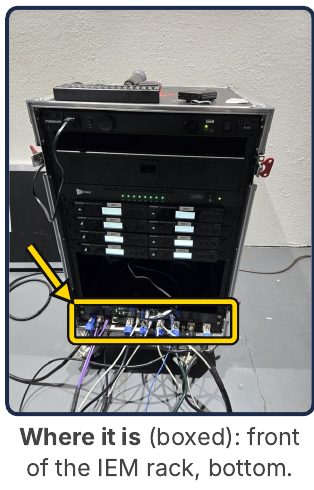
The patch panel and switch at the bottom front of the IEM rack, numbered left to right as you face it.
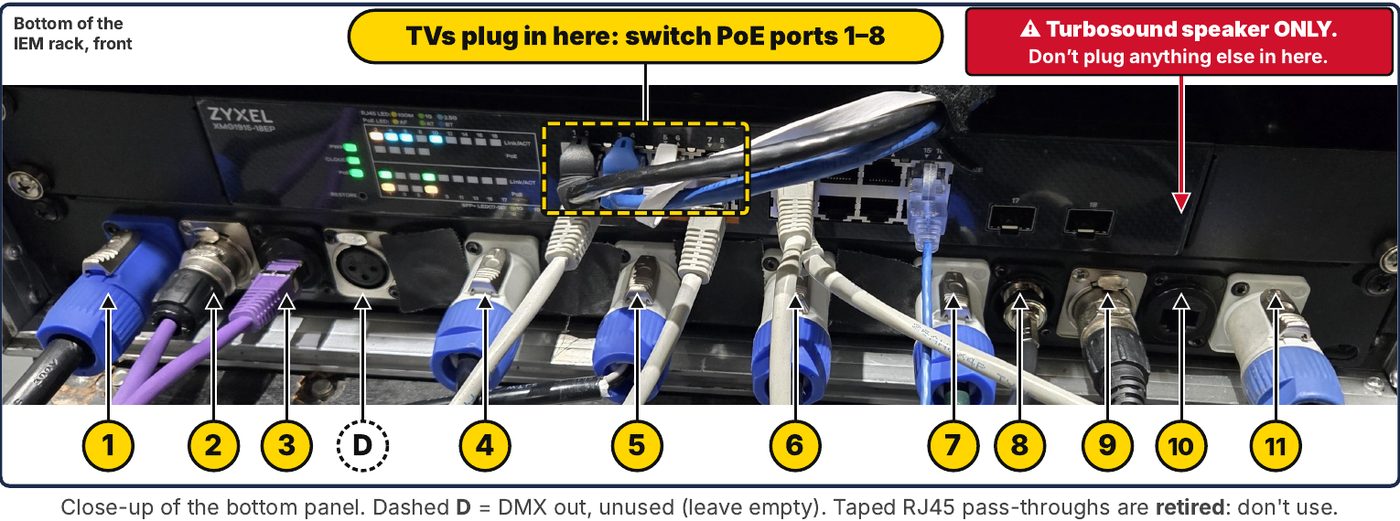
⚠ #10 = Turbosound speaker ONLY. Don't plug anything else in here.
| # | Plug in | Goes to |
|---|---|---|
| 1 | Blue powerCON | POWER IN |
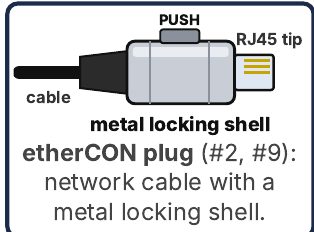
| 2 | AES IN (etherCON) | ← video rack #2 (AES) |
| 3 | Data IN (network) | ← video rack #3 (data) |
| D | DMX OUT (XLR) | Unused – leave empty |
| 4–7, 11 | Grey powerCON: POWER OUT | Any one: TV loom power, SD16 loom power |
| 8 | BNC | RF Venue pyramid antenna |
| 9 | AES OUT (etherCON) | → SD16 (SD16 loom AES) |
| 10 | Ultranet (network) | → Turbosound, far house left. ONLY this. |
| S | Zyxel switch, LEFT half (ports 1–8) | TV loom data cables (PoE). SD16 data: any port |
| retired | Taped RJ45 ports (4) | Don't use – plug data straight into the switch |
🔌 Looms
- TV looms (powerCON + RJ45): powerCON → any POWER OUT. Data → LEFT half of the Zyxel switch (ports 1–8 = PoE; TVs need PoE).
- SD16 loom: AES → #9. Power → any POWER OUT. Data → the switch, any port.
- From the video rack (two purple cords bundled together): video rack #2 → #2; video rack #3 → #3. Power → #1.
- Rack covers: remove both the front and back covers to prevent overheating.
✓ Setup checklist
- 1) Connect #2 AES IN + #3 Data IN
- 2) Video booth powered on & running
- 3) Power up the IEM rack (#1)
- #8 Antenna connected
- #9 AES OUT → SD16 (+ power, data)
- #10 → far house left Turbosound only
- TV looms: power + data to switch left half
- Rack covers off (front + back)
- DMX (D) and taped ports empty