Video Rack – Back Patch Panel
The panel on the back of the video rack, numbered left to right as you face it. Match each cable to its number.
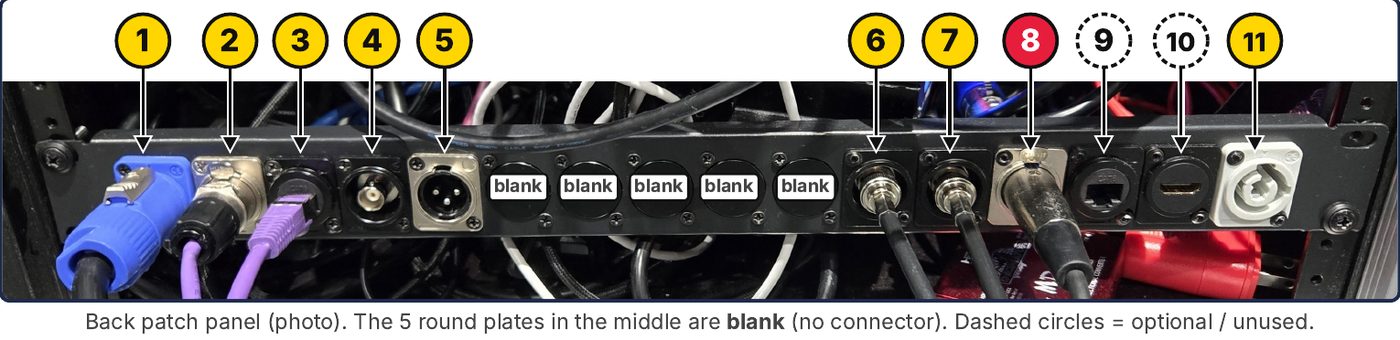
⚠ Do NOT plug the speaker into #8. #8 is DMX (lighting) and is unused. It looks like the speaker XLR. The EV speaker cable goes in #5 (left side, next to the round SDI jack).
| # | Plug in | Goes to |
|---|---|---|
| 1 | Blue powerCON | POWER IN → wall outlet |
| 2 | AES (etherCON) | → IEM rack #2 (AES IN) |
| 3 | Data (network) | → IEM rack #3 (Data IN) |
| 4 | SDI OUT (round BNC) | → LED wall: SDI cable to the NovaStar SDI input |
| 5 | XLR OUT | → EV speaker, near house left |
| 6 7 | BNC | → RF Venue shark fin antenna (#6 + #7: attach the 2 short antennas on the side) |
| 8 | XLR | DMX – UNUSED. Not the speaker! |
| 9 | RJ45 data | Optional: TV NDI receiver, if used |
| 10 | HDMI | Unused – leave empty |
| 11 | Grey powerCON | POWER OUT → TV loom |
▶ Startup (Mac Mini)
- Turn on the Mac Mini (the power button is on the bottom side).
- Log in (password: video), open LightKey, and load the "Hilton 2" file.
- Open Wing Edit as needed.
✓ Setup checklist
- #1 Power in → wall outlet
- #2 + #3 → IEM rack
- #4 SDI → NovaStar SDI input
- #5 XLR → EV, near house left
- #6 + #7 → shark fin + 2 side antennas
- #11 Power out → TV loom
- #9 TV NDI receiver (only if used)
- Leave #8 (DMX) and #10 (HDMI) empty